Most dangerous sites never get a chance to trick you — Chrome blocks them before you land on them. That protection is called Safe Browsing, and it has two levels. Understanding the difference helps you choose the right one.
The short answer
Turn on Enhanced protection if you want the strongest warnings and real-time checks. Use Standard protection if you prefer Chrome to check the sites you visit against a list it downloads. Enhanced sends a small amount of safety-check data to Google; Standard keeps more checking on-device.
What Safe Browsing does
Safe Browsing is Google's service that flags phishing, malware, and dangerous downloads. When you try to open a dangerous site or download a risky file, Chrome shows a warning instead. It works in normal browsing and in Incognito, and it protects against:
- Phishing sites that try to steal your passwords
- Malware and unwanted software downloads
- Sites that use deceptive ads or misleading pages
What a warning actually looks like
When Chrome blocks a page, you get a full-screen red warning instead of the site, with reasons like "Deceptive site ahead" or "This site contains harmful programs". You can click through to visit anyway, but the warning exists because clicking through is usually a mistake. On downloads, Chrome checks the file against known-dangerous signatures and blocks risky types before they save.
Treat any Safe Browsing warning the way you would treat a gate that says "keep out": the page behind it is not worth seeing. If you believe a warning is wrong for a site you own, use Google's review form for site owners rather than forcing your way through.
Standard protection
This is the default. How it works:
- Chrome downloads a list of known-dangerous sites and checks URLs against it on your device.
- For some checks, it may send a portion of the URL to Google for additional verification.
- You get warnings before you open flagged sites and before you download risky files.
Enhanced protection
This is the stricter, opt-in level:
- URLs are checked in real time against Google's servers, so new threats are caught faster.
- Chrome sends more data about the sites you visit (including some URLs and download information) to Google for analysis. That data is temporary and tied to your safety settings, not your Google account.
- You get warnings for risky downloads, suspicious file types, and sites with poor safety signals even if they are not yet on a list.
The practical difference: Standard catches what Google has already found. Enhanced catches what Google is finding right now, which is where most brand-new phishing sites live — a fake login page usually lasts only a few days before it is detected, and that is precisely the window when Enhanced helps most.
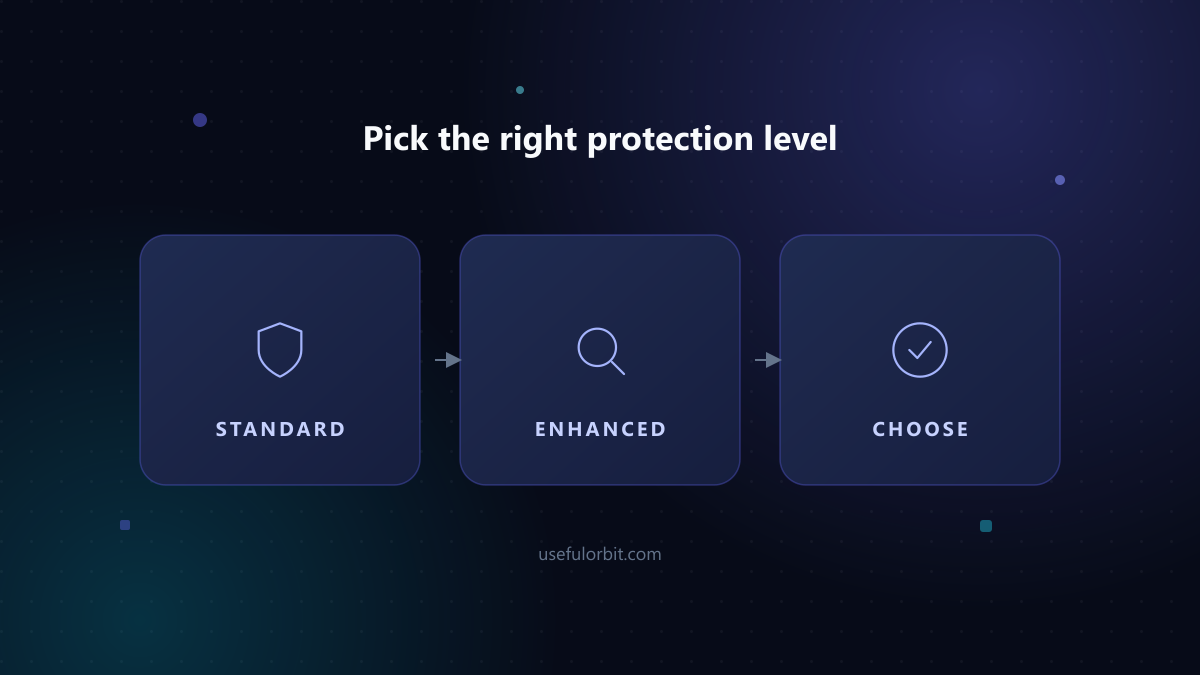
Which should you choose?
Choose Enhanced if you want maximum protection and are comfortable sending safety-check data to Google.
Choose Standard if you prefer most checks to stay on your device and accept that a brand-new threat might be flagged slightly later.
For most people, Enhanced protection is worth it — the data Chrome sends is limited to safety checks, and the faster warnings matter more than the tiny privacy trade-off.
How to turn it on
- Open Chrome Settings (three-dot menu → Settings).
- Go to Privacy and security → Security.
- Choose Enhanced protection, Standard protection, or No protection.
Avoid "No protection" — it disables the warnings that stop you opening scam pages. Phishing sites change constantly, and the warning screen is often the only thing between you and a fake login page. Pair Safe Browsing with a scam-checking tool like Scam Guard for protection that also works in browsers where you do not have a Google account.
Quick answers
Does Enhanced protection slow Chrome down? No noticeable slowdown in day-to-day use. The real-time check adds a short request before you open a site, which most people do not notice.
Will Safe Browsing report my browsing to Google? Standard protection keeps most checking on-device and sends only partial URL checks. Enhanced sends more safety-check data, but Google ties it to your safety settings, not your Google account or search history. You can review what Enhanced collected under your Google account's security settings.
Can I still open a site Chrome flags? Technically yes — the warning screen has an "ignore and continue" option. Practically, do not use it for pages you did not intend to visit. If a site you trust is flagged, verify the domain is spelled correctly first; typosquatting is one of the most common phishing tricks.
Does this protect my phone? Safe Browsing is built into Chrome on Android and iOS too, and Enhanced protection works on the mobile versions. The same settings apply across the browser you sign into.
 Pick the right protection level
Sources and further reading
Written by Hassan Arshad, founder of UsefulOrbit. Last updated August 31, 2026.