Your browser is the front door to almost everything you do online — the sites you visit, the things you search, the accounts you log into, and often your location. You do not need to become anonymous to be private. You need a handful of deliberate choices that put you in control.
This is a complete setup guide: exact settings per browser, then search, DNS, passwords, and the habits that keep it that way.
The 10-minute setup checklist
If you do nothing else, work through this list once:
- Block third-party cookies in your browser (exact steps below).
- Turn on tracking protection (on by default in most browsers — set to the strictest option).
- Enable DNS-over-HTTPS.
- Set a privacy-respecting search engine as default (DuckDuckGo or Startpage).
- Review site permissions (camera, microphone, location, notifications) and revoke old grants.
- Remove extensions you do not use and re-check permissions on the rest.
- Set up a password manager and two-factor authentication on your email.
- Sign out of accounts you rarely use.
The rest of this guide explains each step and why it matters.
Browser-by-browser settings
Chrome / Chromium
- Third-party cookies: Settings → Privacy and security → Third-party cookies → Block third-party cookies.
- Safe Browsing: Settings → Privacy and security → Security → Enhanced protection (stronger scam and malware protection).
- Site permissions: Settings → Privacy and security → Site settings → review camera, microphone, location, and notifications; revoke anything unused.
- Site data: open
chrome://settings/siteDataperiodically and clear data for sites you no longer use.
Firefox
- Tracking protection: Settings → Privacy & Security → Enhanced Tracking Protection → Strict.
- DNS-over-HTTPS: Settings → Privacy & Security → scroll to DNS over HTTPS → Max Protection.
- Total Cookie Protection is on by default — it isolates each site's cookies, so a tracker cannot read across sites.
- Review Permissions (camera, microphone, location, notifications) and remove old grants.
Edge
- Tracking prevention: Settings → Privacy, search, and services → Tracking prevention → Strict.
- Site permissions: Settings → Cookies and site permissions → review camera, location, notifications.
- Edge is Chromium-based, so the cookie and site-data controls mirror Chrome's.
Incognito and private mode: the truth
Private browsing (Incognito, InPrivate, Private Window) has one job: it does not save your history, cookies, or form data on the device. It does not hide your activity from websites, your internet provider, your employer, or the government.
For stopping trackers, blocking cookies and trackers does far more than opening a private window. Private mode is a clean-slate tool, not an anonymity tool. Our Incognito Mode Myths article covers the specifics.
Choose a search engine that does not profile you
Your search history is one of the most revealing datasets about you. Search engines like DuckDuckGo and Startpage do not build a personal profile of your searches, and either can be set as your default in under a minute. You lose almost nothing and gain meaningful privacy. (For a deeper comparison, see Search Engine Privacy Compared.)
Secure your DNS
Every site you visit starts with a DNS lookup, and by default that lookup can be read by your network or internet provider. DNS-over-HTTPS encrypts this step. Firefox has it built in (Settings → Privacy & Security → DNS over HTTPS), and Chrome and Edge expose it under their privacy settings. Turning it on prevents your provider from building a list of every site you visit. The DNS privacy guide explains the mechanics.
The extensions that genuinely help
The right extensions make privacy easier without slowing you down:
- Tracker and content blockers (uBlock Origin) block ads, trackers, and analytics scripts — and make pages load faster.
- Cookie managers let you clear cookies for individual sites without logging you out of everything.
- Temporary containers or site isolation tools (Firefox Multi-Account Containers) keep one site from seeing your activity on another.
Two rules for privacy extensions: install from the official store (see our guide to choosing safe extensions), and grant only the permissions they need. An extension that must "read all websites" to block ads is normal; one that asks for your passwords is not. Our best privacy extensions article ranks the top options.
Passwords and two-factor authentication
Good privacy is built on good security. Use a password manager so every account has a unique password, and turn on two-factor authentication everywhere it is offered. If one site leaks your password, a unique password means nothing else is at risk. The password manager guide covers choosing one, and the 2FA guide covers authenticator apps vs SMS.
Sign in to fewer places
Every "Continue with Google" login connects your browsing to one profile. It is convenient, but it also lets that account link your activity across thousands of sites. For accounts you rarely use, sign in directly instead, and review connected apps periodically (under your Google or Microsoft account security settings) to revoke anything you no longer use.
A monthly privacy reset
Once a month, spend five minutes:
- Clear site data for sites you no longer use.
- Remove browser extensions you have not used.
- Revoke app and extension access for accounts you do not need.
- Review which sites can show notifications, access your location, or use your camera.
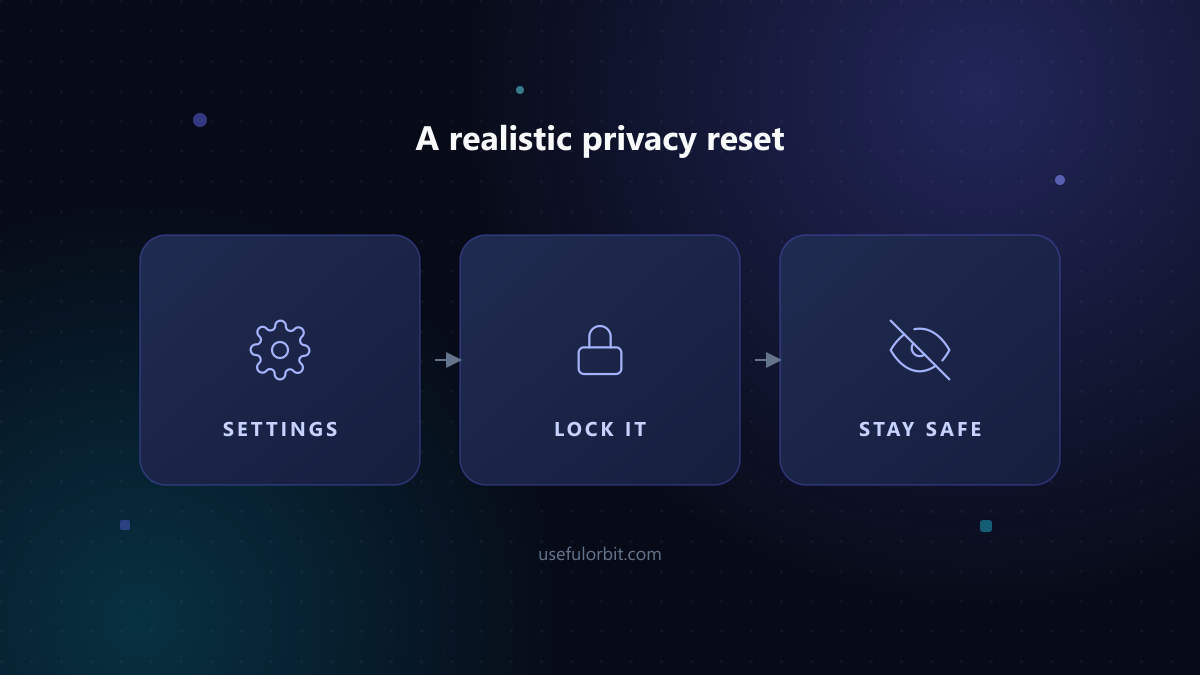 A realistic privacy reset keeps your setup from quietly expanding.
Quick answers
Is private browsing private? It does not save history or cookies on your device. It does not hide activity from websites, your ISP, or your employer.
Which browser is most private? Firefox with Strict tracking protection and Total Cookie Protection is the strongest mainstream default. Tor Browser is the gold standard for anonymity but is slower.
Do I need a VPN for privacy? A VPN hides your IP from websites but does not stop tracking by cookies or fingerprinting. For most people, browser settings and extensions matter more.
How long does this setup take? About 10 minutes once, then five minutes a month.
Written by Hassan Arshad, founder of UsefulOrbit. Last updated August 31, 2026. Sources: Mozilla: Firefox privacy, Google Chrome Help, EFF, W3C: Fingerprinting guidance.